
← Financial Modeling in Excel from Scratch
Lesson
NPV and IRR: the NPV>0 rule and the first-cash-flow timing trap
Calculate net present value and the internal rate of return with the NPV and IRR functions, apply the NPV>0 rule, and avoid the initial-investment trap.
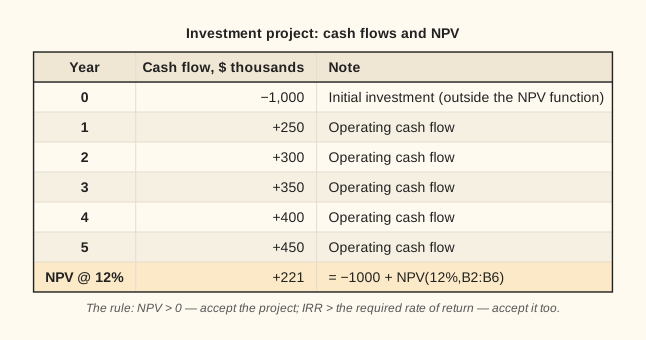
Cash flows of an investment project and the NPV calculation
The initial investment goes outside the NPV function
The key Excel trap: the NPV function discounts only the range you pass to it, so the year-0 investment has to be added by hand.
Lesson notes
NPV and IRR: evaluating a project the right way
NPV (Net Present Value) is the sum of a project's future cash flows discounted at the required rate, minus the initial investment. NPV > 0: it creates value and is worth accepting; NPV < 0: it destroys value.
The key Excel trap: the NPV function ALREADY discounts the first cash flow you give it (as end of period 1, not time 0). So add the time-0 investment separately, never inside NPV. Correct: =NPV(rate, cash_flows_from_period_1) + investment_at_time_0. Example: −10,000 at time 0, then 3,000, 4,200, and 6,800 at the end of years 1–3, at 10%: =NPV(10%, 3000, 4200, 6800) + (−10000) = 1,307.29. NPV > 0 → accept.
A common mistake is to put −10,000 INSIDE the function: =NPV(10%, −10000, 3000, 4200, 6800). Excel treats it as an end-of-period-1 flow, divides it by (1+rate) once too often, and gets 1,188.44 — understated and wrong for money invested today. The entire gap is due to mistiming the investment.
IRR (Internal Rate of Return) is the rate at which NPV equals zero: NPV(IRR(...), cash_flows) = 0. IRR is used to compare projects: if IRR is above the required rate of return, the project is attractive. The IRR function takes all the cash flows INCLUDING the time-0 investment (unlike NPV): =IRR(B1:B4).
Remember: NPV — the rate first, then cash flows from period 1; the investment is added outside. IRR — one argument: all cash flows including time 0, no rate.